Buying and selling
The trade panel on a token page, the Instant panel and one-click buys from Trenches and Discover.
Hexa gives you three ways to place a market order. They all use the same wallet and the same trading preset.
| Where | Best for | Confirmation |
|---|---|---|
| Trade panel on a token page | Choosing an exact amount, limit and trigger orders, take-profit and stop-loss | Sent when you press Buy / Sell |
| Instant panel over the chart | Fast repeat trades at saved amounts | Sent on click |
| ⚡ Quick buy on Trenches cards and in Discover | Buying a fresh launch without opening it | Sent on click |
Market orders are sent immediately
There is no confirmation step after you press a buy or sell button. Check the amount and the active preset (P1, P2 or P3) before you click.
The trade panel
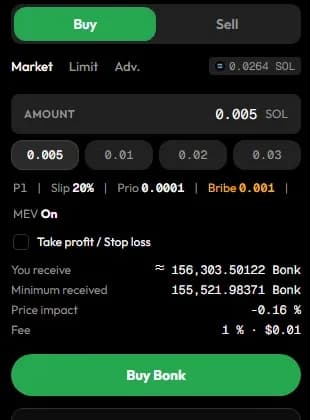
Open any token and the trade panel sits on the right (on a phone, tap Buy or Sell in the bar at the bottom).
Choose Buy or Sell
Buy spends the chain's native coin (SOL on Solana, BNB on BSC, ETH on Ethereum, Base and Robinhood Chain, USDC on Arc). Sell sells a percentage of your position in the token. The balance pill shows what you have to spend or sell.
Pick the order type
- Market fills now at the best available price, within your slippage.
- Limit waits until the token's market cap reaches the level you set.
- Adv. adds triggers (market cap, dev sells, migration or a set time) and sell ladders.
Limit and Adv. orders currently work on Solana tokens only. See Limit, take-profit and stop-loss.
Set the amount
On a buy, type an amount or tap one of the four quick amounts. On a sell, choose 25%, 50%, 75% or 100%; Hexa sizes the sell from your open position in the token.
The panel shows You receive ≈ an estimate of what the trade returns, and a summary of the active preset: slippage, priority fee, tip and whether MEV protection is on.
Optional: add take-profit and stop-loss
Tick Take profit / Stop loss on a buy to attach both exits to the position once the buy has filled. They are measured from your entry price and each sells the whole position; when one fires, the other is cancelled. On the Sell side, the same box puts take-profit and stop-loss on the position you already hold instead of selling now.
Send it
Press Buy or Sell. A toast follows the order until it lands on-chain or fails. Failed orders are never retried for you; place the order again if you still want it.
The Instant panel
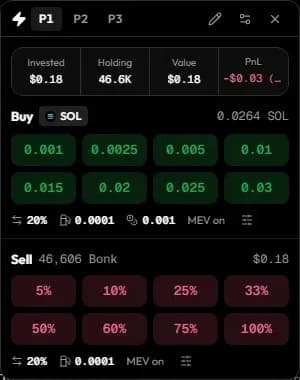
Press Instant above the chart to open a floating panel you can drag anywhere (a bottom sheet on phones). It has eight buy buttons for the chain's native coin and eight sell buttons (5%, 10%, 25%, 33%, 50%, 60%, 75% and 100% of your position).
- Switch preset with P1 / P2 / P3 in the header.
- Use the pencil (Edit amounts) to change the buttons, or Reset to defaults.
- The sliders icon opens the active preset's settings: slippage, and on Solana the priority fee, Jito tip and MEV protection.
One-click buy
The ⚡ button on every Trenches card and the Quick buy column in Discover buy at once with your ⚡ amount and the active preset. Each chain has its own ⚡ amount: change it in the column header's ⚡ field (the chain icon next to it switches chain) or under Customize → Buy amounts.
Trading from several wallets
You can hold up to five Solana wallets in Hexa (New wallet in the wallet drawer) and combine two to five of them into a wallet group with an equal or weighted split (+ Create a wallet group on Trenches, or the wallet drawer).
The From menu in the trade panel picks where an order comes from: Main wallet, one of your other wallets, or a group. A group buy is split across its wallets; in live mode the parts are sent one after another, so they can fill at slightly different prices.
Simulate and live
A Hexa deployment runs in one of two modes:
- Simulate: orders are priced against live quotes and recorded, but nothing is sent to a blockchain and no funds move. Fills say Simulated in the toast and the notification, and Portfolio is tagged Paper.
- Live: orders are signed and broadcast from your wallet. Early live trading has small per-trade and daily limits; see Fees and limits.
After the trade
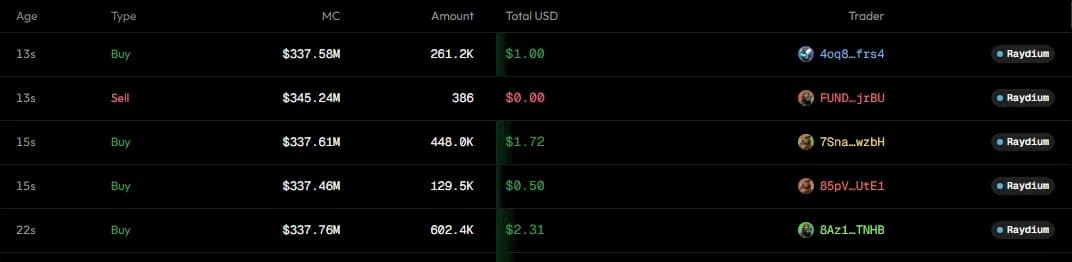
- The Positions and Orders tabs under the chart show your position in the token and its open orders.
- Portfolio lists every holding with its cost and PnL.
- Share a result with the PnL card (the camera icon next to the token name).